How to Set Up and Modify Passwordless Login
In today's digital age, securing sensitive data while ensuring user convenience is crucial. With cyber threats on the rise, traditional password-based authentication methods are vulnerable to breaches. To counter this, organizations are adopting multi-factor authentication (MFA) for added security.
However, traditional MFA can be burdensome, necessitating complex passwords or extra devices. Passwordless login presents a user-friendly solution by eliminating passwords entirely, simplifying authentication while upholding stringent security standards.
In this guide, we'll walk you through enabling and configuring passwordless login for the isolved employee portal.
First Login On New Device
The first time you log in from each device isolved will give you the option to set up "passwordless" login on that device.
This allows you to use your device’s unlock mechanism (PIN, Face ID, Touch ID, Fingerprint, etc.) as an easier and more secure alternative to a password.

You can choose "Set Up Now" to set it up, or "Maybe Later" to dismiss the screen and be reminded at a later date. If you check the box next to "Don't ask again on this device" you won't be reminded again to set it up.

Click on Set Up Now
Depending on the device being used to log in, there are different options available for the user.
Log in without a password
Once it's set up, you'll have the option to login without your password by selecting the key icon.

Removing and adding Authentication Methods
You can set up multiple devices and multiple authentication methods per device. To manage all your authentication methods, follow the steps below.
Adding an authentication to your account
1. Log in to your account
2. Click on your initials.
3. Click on Manage account.
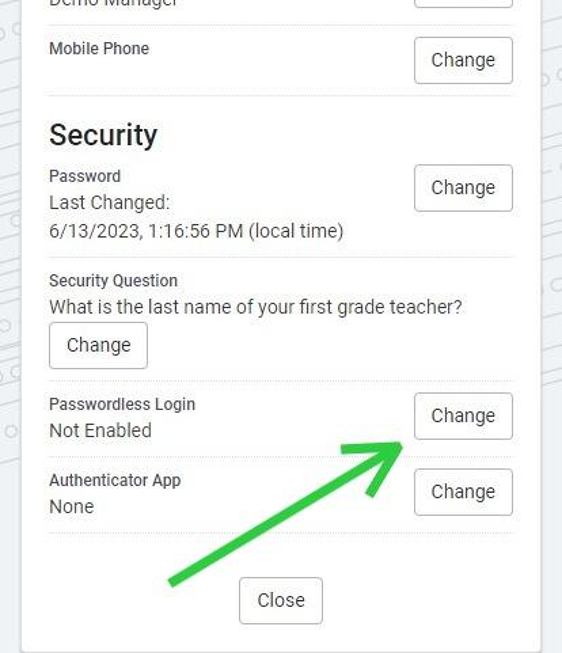
4. Click "Change" next to Passwordless Login.
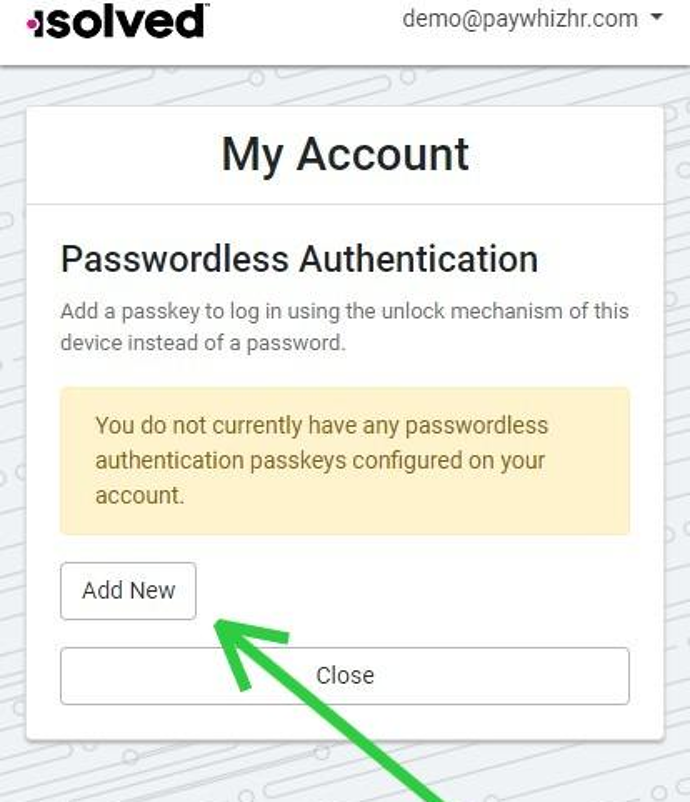
5. Click "Add New"
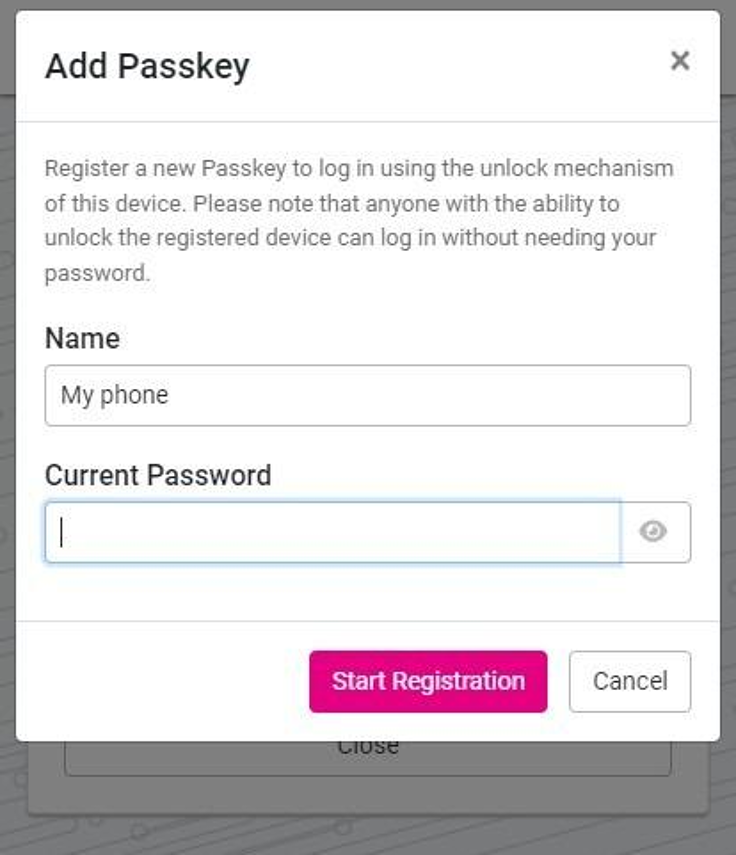
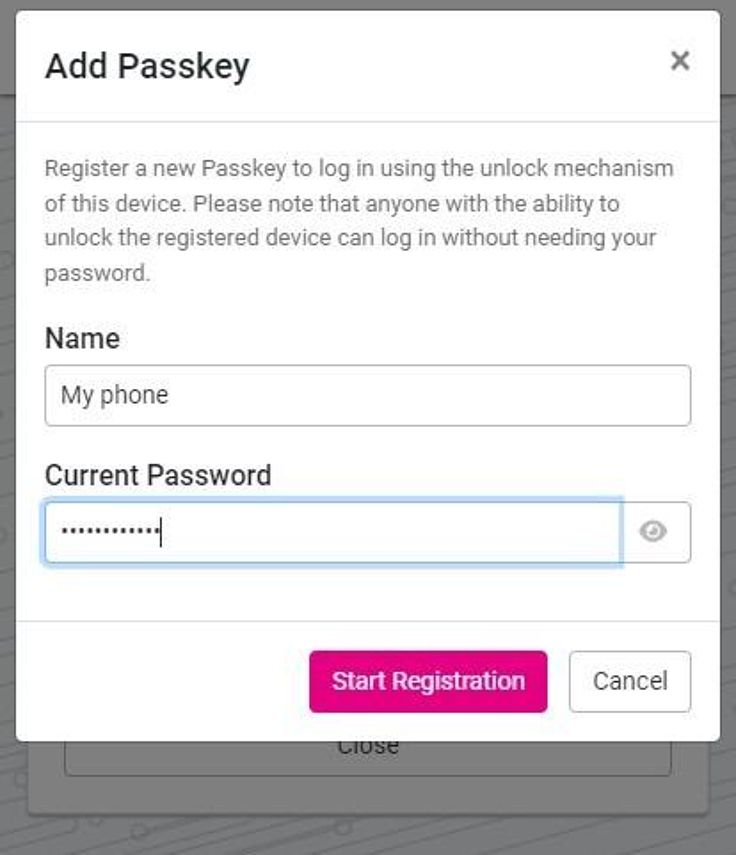
6. Give a name for this passkey (Optional) and enter your password.
7. Click "Start Registration"
A pop-up will appear with the options available to your device.
Deleting a passkey
To delete a saved method, simply click on the trash icon next to the saved method.


Note that saved passkeys from all your devices will be listed here.